Can I use it with an external monitor, lid closed?
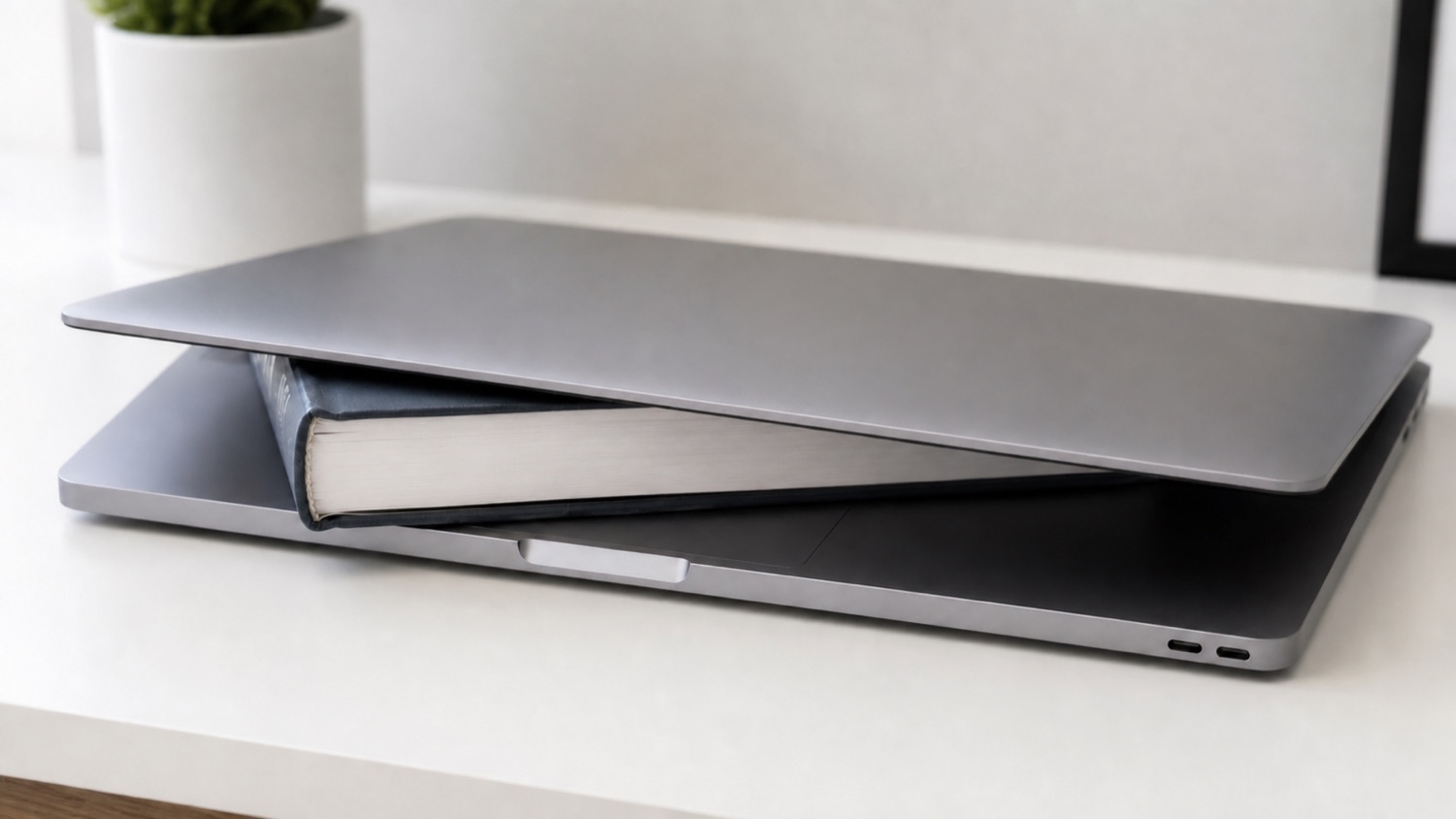
Yes — that’s exactly what it’s made for. Close the lid and keep working on your external display; lidawake keeps your Mac awake so it won’t drop off to sleep. Because a closed lid blocks cooling, clamshell mode is happiest on power — keep your Mac plugged in when you can, and lidawake keeps an eye on the temperature either way.
My Mac goes to sleep when I close the lid — how do I stop it?
That’s exactly what lidawake is for. Install it, click once in the menu bar, and your Mac stays awake with the lid shut — nothing to type into Terminal, no system files to change. Switch it off and your Mac sleeps normally again.
Where did my cursor go?
With the lid closed, macOS still keeps the built-in screen in the layout — invisible, but there — so the pointer can wander onto it. That’s a macOS quirk, not lidawake. Slide back toward your monitor and it pops right back.
Is it safe to keep my Mac awake with the lid closed?
Yes, with a little care. A closed lid covers the vents, so the screen goes dark and lidawake keeps an eye on temperature and battery, stopping automatically if things get too warm. Keep your Mac on a hard, flat surface — not a bed or a couch cushion — so it can shed heat.
What if I forget to turn it off?
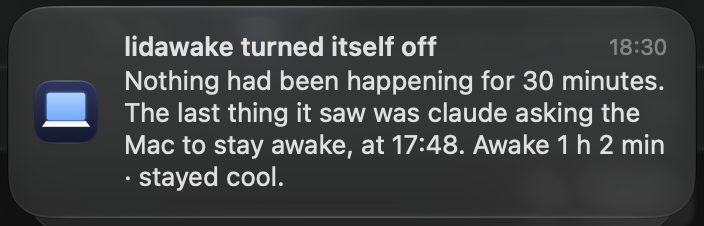
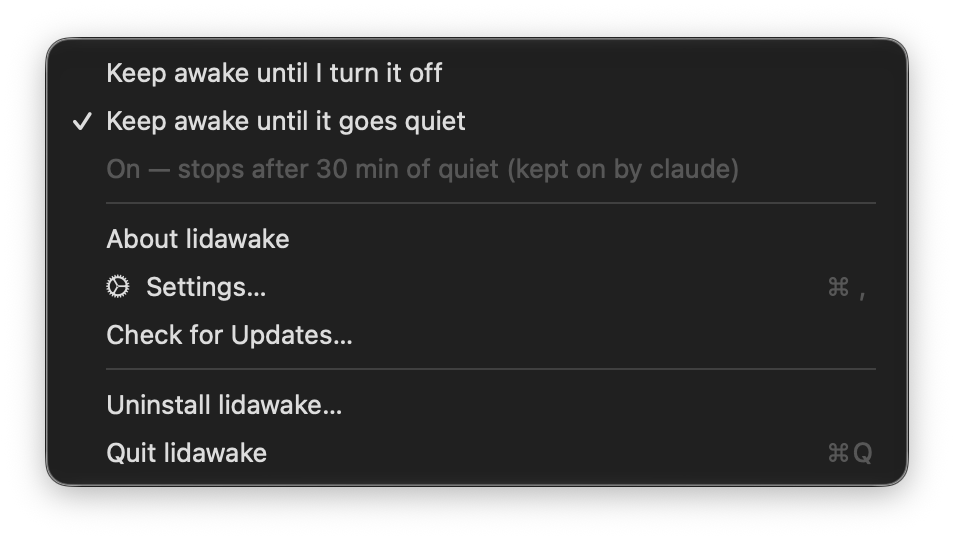
Pick “Keep awake until it goes quiet” and you don’t have to remember: 30 minutes after the last sign that anything is happening, lidawake turns itself off and hands sleep back. If you picked “Keep awake until I turn it off”, there’s still a net. By default, unplugging turns lidawake off and hands sleep back, so a switch you forgot about doesn’t survive the trip to the bag. If you’ve switched battery use on, it tells you out loud instead, at the moment it matters: close the lid on battery with nothing plugged in, or pull the power cable with the lid already shut, and it plays a sound right away and leaves a note in Notification Center. If your volume is low it’s turned up for that one second and put back; if your Mac is muted, it stays silent. The one case it can’t catch is unplugging a monitor that doesn’t charge your Mac while the lid is already shut. Behind all that, the safety limits still stop it: lidawake hands sleep back if your Mac gets too warm or the battery reaches the level you set, and when you open the lid it tells you how long your Mac stayed awake, whether it warmed up, and what the battery did.
How does it know my Mac has gone quiet?
It watches for signs that something is still going on: you using the Mac, sound or video playing, one of your programs working hard or asking the Mac to stay awake, the graphics chip working, and steady network traffic such as a download. Most of what macOS does for itself in the background doesn’t count, however busy it gets. Thirty minutes after the last of those, lidawake turns itself off and leaves a note saying what the last thing was and when. It only looks: it keeps no history of what you do, and nothing leaves your Mac. The one thing it writes down is the last thing it saw at the moment it turns itself off — in the note it leaves you, and in a single line in your Mac’s own log. For work that comes in bursts with more than half an hour between them, use “Keep awake until I turn it off” instead. That includes AI coding agents: one that asks the Mac to stay awake while it works — Claude Code in a terminal does — keeps it on, provided it checks in more often than every 30 minutes.
What if lidawake crashes while my Mac is awake?
Your Mac goes back to sleeping normally by itself. The setting that keeps a Mac awake with the lid closed belongs to macOS, not to lidawake, so something has to put it back — and that’s the helper’s second job. If the app crashes, is force-quit, or freezes and stops checking in, the helper restores normal sleep on its own authority. If the Mac restarts, the helper clears the setting as it starts up. You never need lidawake running for your Mac to be able to sleep.
Does it tell me what happened while I was away?
Yes. Open the lid after five minutes or more and lidawake tells you how long your Mac stayed awake, whether it stayed cool or warmed up, and what the battery did. And if it had to stop early — too warm or battery too low — it tells you that at the time, so you’re never left guessing whether it worked. And if it turned itself off because things went quiet, the note says what the last thing it saw was, and when.
Why does it need administrator access?
Keeping a Mac awake with the lid closed is only possible through one macOS setting that needs administrator rights. lidawake handles it with a tiny signed helper that does only that one thing — you approve it once with a click, no Terminal and no password-pasting. The helper touches no files, no network, and nothing else on your Mac, and because the whole app is open source you can read exactly what it does. It is also what protects you: because the helper is separate from the app, it can put things back when the app cannot.
Does lidawake connect to the internet?
Only for two things, and both are there in the source code. When you enter a license key it’s checked with Freemius, our payment provider — that sends the key, a per-Mac identifier (not your serial number) and your Mac’s name, and nothing else. The name is there for you: it’s what lets you tell your Macs apart on your account page, under Activations, when you want to move your license to a different one. After that it re-checks at most once a week when you launch the app, and carries on working offline if it can’t reach them. Separately it asks zayco.it whether a newer version exists, and asks you before installing one. That’s everything: no analytics, no telemetry, no account, and during the 14-day trial there’s no license check at all.
How do I know the download is genuine?
It’s signed with zaYco’s Apple Developer ID and notarized by Apple, so macOS verifies it automatically the first time you open it. If you’d like to check for yourself, every release publishes a SHA-256 checksum, and running “spctl -a -vv /Applications/lidawake.app” in Terminal should report “accepted, source=Notarized Developer ID.”
Does it work on battery?
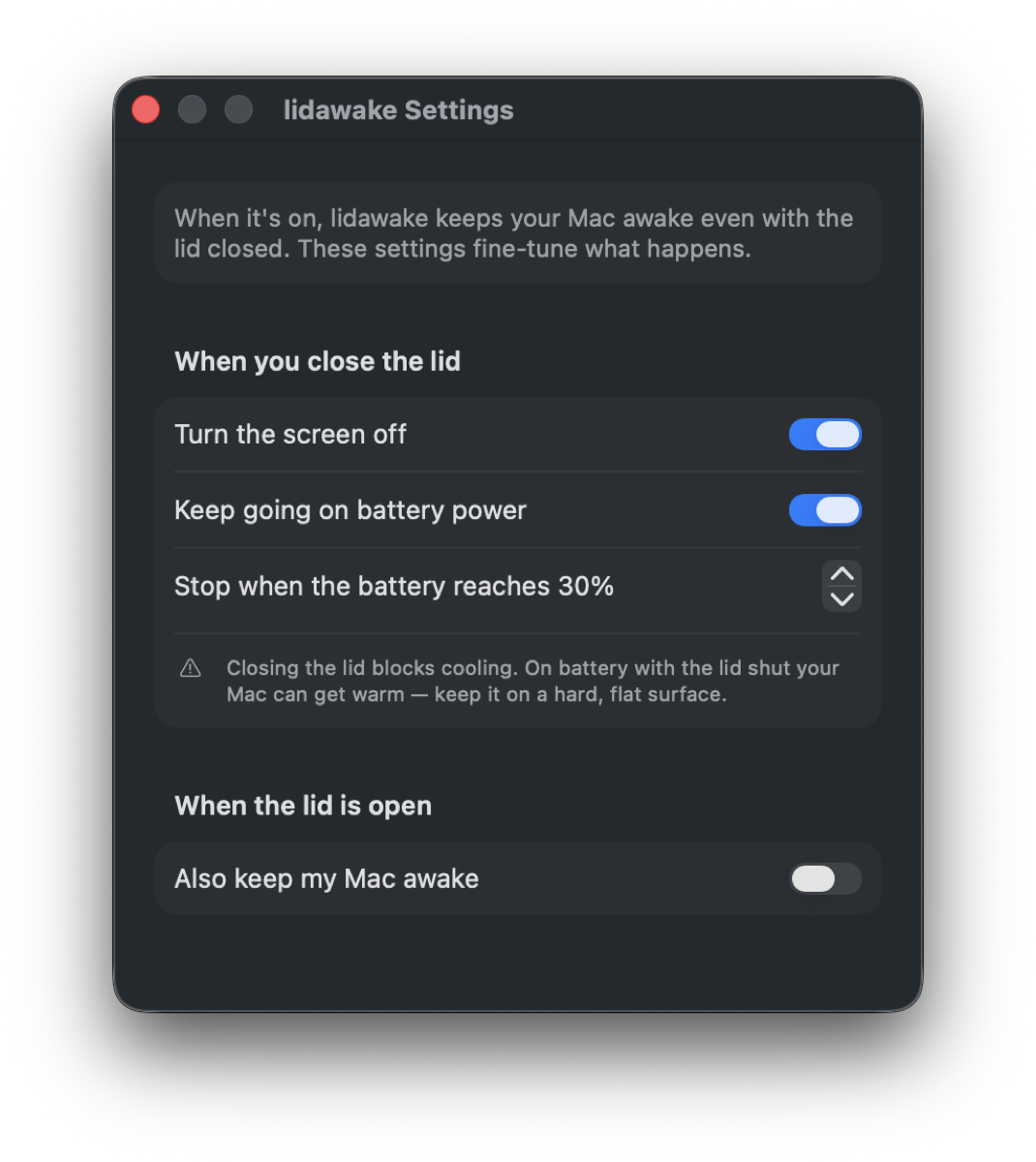
Yes. Because a closed lid runs a bit warmer, running on battery is off by default — you can switch it on in Settings and set a battery level to stop at.
Which Macs does it run on?
Any Apple Silicon Mac (M1 or later) running macOS 13 (Ventura) or newer.
What happens after the free trial?
The 14 days run in the app itself — download it and the trial starts, with no account, no sign-up and no card details. After that, a one-time license keeps it going: $19 for one Mac, or $29 for up to three. There’s no subscription and no renewal; you pay once. Already had lidawake before it became paid? It stays free for you, forever.
How do I activate it after I buy?
Your license key arrives by email as soon as you pay, along with a link to your account page. In lidawake, open the menu, click the trial line, paste the key and press Activate — there’s no account to create in the app. Your key covers one Mac or three, depending on which you bought. Getting a new Mac, or moving lidawake to a different one? Open your account page from that same email, go to Activations, and deactivate the Mac you no longer use — that frees the slot straight away, and you don’t need to email us.
Is VAT included in the price?
No — tax is added at checkout, because Freemius sells lidawake as the merchant of record and charges the rate for your country. EU and UK buyers pay their local VAT, US buyers sales tax where it applies. As an example, €19 comes to €23.37 with Slovakia’s 23% VAT. Buying for a company in the EU? Enter your VAT number at checkout and the VAT is removed under the reverse-charge rules, so businesses pay the net price. The exact total is always shown before you pay.
Can I get a refund?
Yes — a 14-day money-back guarantee, no fuss and no forms. Email support@zayco.it within 14 days of buying and we’ll refund you, no questions asked. Freemius shows the same guarantee on the checkout page before you pay.
What if I get stuck — is there support?
Yes, and it’s included in the price, not sold separately. Email support@zayco.it and a person answers — the same people who wrote the app. There’s no support tier, no ticket queue and no upsell.